
FAQs for employers
Once you’ve given an exit date for a worker, their record is marked as closed and we won’t accept any more contributions for them.
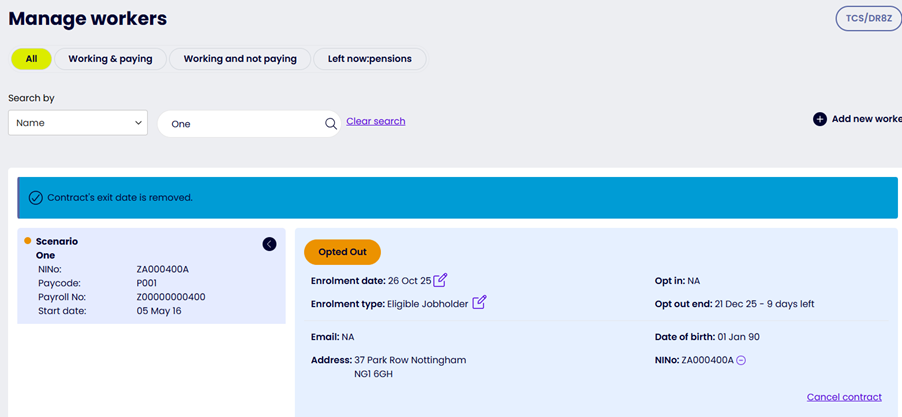
If you’ve given the exit date by mistake, you can remove the worker’s ‘Leaver’ status from the Manage workers page in now:u. The worker’s record status will go back to what it was before you changed it.
To remove an exit date, please choose the minus sign next to the date.
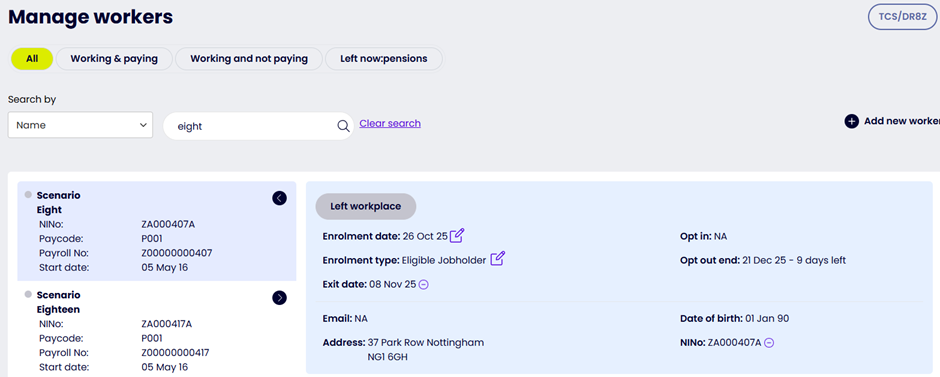
Changing a worker’s status to ‘Active’
If a worker’s previous status was ‘Active’, removing the exit date means we’ll expect future contributions.
To make sure contributions are restarted in the correct pay period, you’ll be asked to put in the date they should restart. This date must be later than the original exit date.
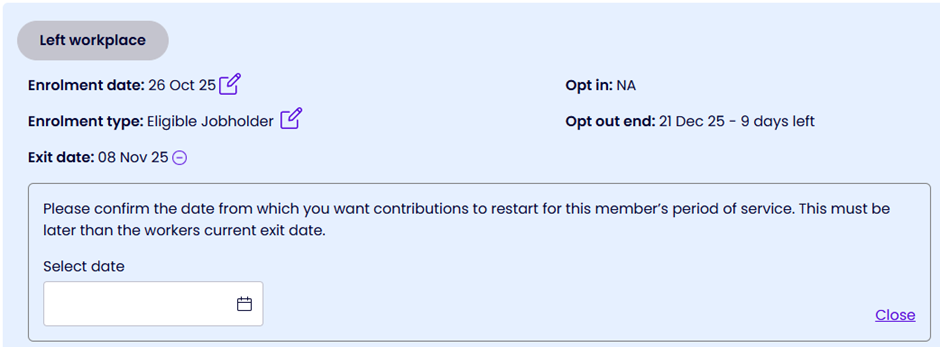
Once you’ve put in the date, we’ll tell you which pay period contributions can restart in. If this isn’t correct, please change the date until the correct pay period is shown.
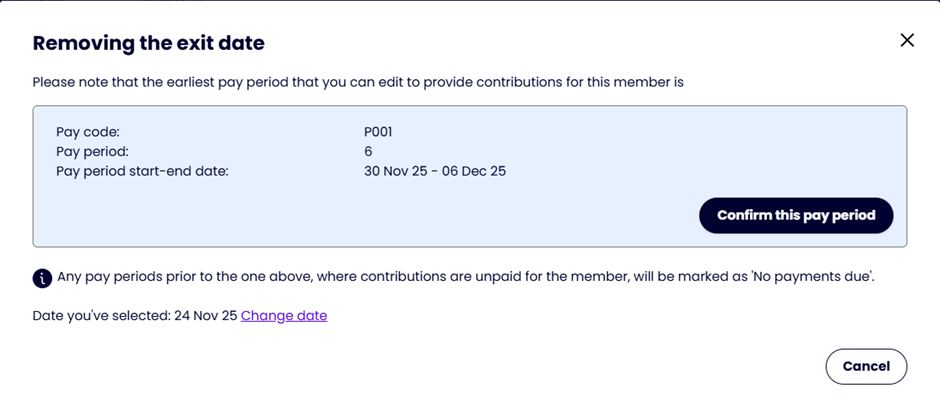
When the correct period is shown, choose ‘Confirm this pay period’. The contract will then be made active.
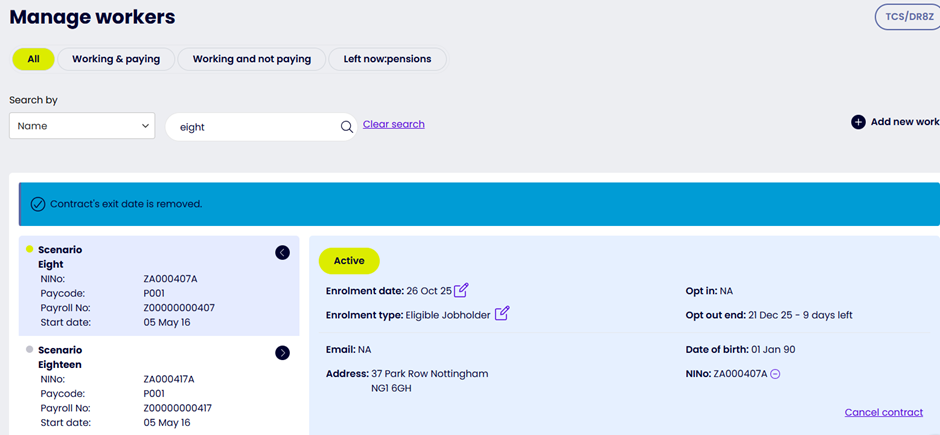
Going back to other contract statuses
If the contract status wasn’t ‘Active’, a message will confirm which status the contract will be updated to following removal of the exit date. You won’t need to confirm when contributions should restart, because contributions can only be submitted to active contracts.
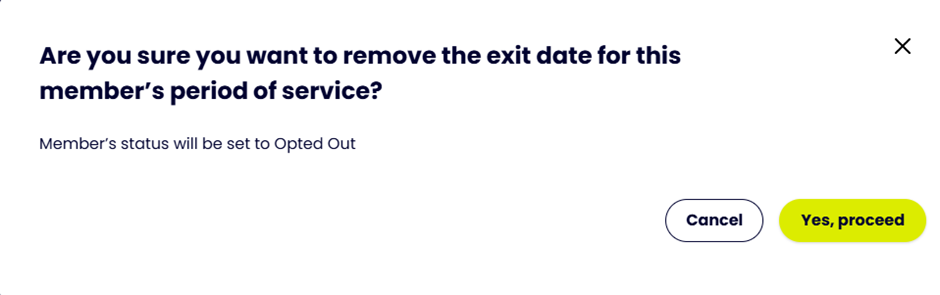
Once you’ve confirmed you want to proceed, the contract will return to the status confirmed.
You should upload your pension data file as soon as possible after your payroll processing date – but make sure all the information in it is correct and complete. We use this information to send statutory communications to your workers on your behalf. There are strict timescales, enforced by The Pensions Regulator, for sending these to workers.
Our step-by-step guide will give you detailed information on how to do this.
Follow our step-by-step guide to learn more about the process.
Our guide can help you through this process, step-by-step.
Check your WAF to see what your workers have done since the start of the current pay period. Put the changes into your payroll software in time for your next upload. You should always make the changes from the WAF before you upload your pension data file for the next pay period.
Log in to now:u and from your Snapshot, go to Payroll upload.
You can look at details of each of your payrolls on screen. You’ll need to look at the WAF for each payroll separately. The WAF will show the most recent actions workers have taken, received after the start of the current pay period, for the selected payroll. If you want to see earlier worker actions, go to Request date and choose the date you want to see worker actions from. If there have been no actions by your workers since the start of the current pay period, you’ll see a message confirming this.
To get a WAF, download the records shown on the screen as a CSV file by choosing Download the worker action file. You can then use the information in the WAF to update your payroll software. The CSV file will have more headings than you can see on the screen. Here is a guide to the headings in this file.
A CSV file is a plain text file that lets you save data in a structured format. They’re often used to import and export data between different spreadsheet, payroll and accounting software packages. You’ll need to use CSV files when you’re uploading your pension data file and downloading your worker action file.
Remember, when you’re working with CSV files it’s easy to lose information (for example, payroll numbers which start with a zero). To help ensure your data is accurate, please follow these instructions:
- Only export files direct to Excel that are correctly formatted.
- Make any amendments before saving the file.
- Once the file’s complete, save as a .csv file and click ‘Yes’ to use that format.
- Close the document.
- When you’re prompted to save changes, click ‘No’. Your file is ready to upload.
Your worker action file (WAF) is a CSV file showing changes you need to make in your payroll software, before you run your next payroll, to take account of any instructions your workers have given about their pension contributions.
The WAF will list the actions below.
- Opting out.
- Stopping or re-starting contributions.
- Starting, stopping or changing extra contributions.
You’ll need to make these changes in your payroll software as soon as you can. Otherwise, you could have errors in your pension data files and your next file upload might not be accepted. Our system will not be expecting contributions for workers who have opted out or stopped their contributions.
Choose Payrolls from the menu. On the Payroll details page, choose Add a new payroll.
Put in the name, frequency and deduction date for the payroll in the same way you did when you added your first payroll. You can use the existing bank details or add new ones.
You can only edit a worker’s contributions if they’ve been processed for a pay period and their status is Payment received. You can’t edit contributions with a status other than Payment received. The screenshot below shows how the Edit pencil icon only appears next to rows that say Payment received.
If there are already contributions for that worker in the pay period, you’ll be able to:
- change or delete that worker’s contributions for the period
- give a leaving date for the worker.
If there are no contributions for that worker in the pay period, you’ll only be able to:
- put in a contribution amount for that worker in the period
- give a leaving date for the worker.
You must save each change you make. Once you’ve made all the changes you need to the pay period, choose Submit payroll.
You can increase and decrease the value of contributions in the same pay period update. Once you’ve made all your changes and submitted the payroll, the system will work out what extra money needs to be paid, or what refund should be made to the appropriate bank account.
You can add new or missing workers in now:u. For example, you can add a worker who was accidentally missed off the original pension data file for that pay period and has payments into their pension savings that need to be processed.
Learn how to do this in our step-by-step guide.
If you run your payroll weekly, fortnightly or four-weekly, some years will have extra pay periods.
When this happens you’ll need to create extra pay periods to finish your PAYE tax year.
How to create extra pay periods
Log in to now:u and go to your Payroll page, where you’ll see your active payrolls. When your next pay period is 1, you’ll be able to edit this pay period and its start dates to match your extra pay period.
Once you’ve uploaded your pension data files for this pay period, the next expected pay period will be 1. You’ll be able to edit this again to re-set your pay periods for the start of the new payroll year.
What do extra pay periods mean for workers?
HM Revenue & Customs (HMRC) says you must give your workers an extra amount of tax-free pay – even if their tax-free pay for the year has been allocated. This helps to protect workers’ take-home pay and makes sure the tax for that period doesn’t vary too much from the usual amount.
Once the tax year ends, HMRC will recover the underpaid tax given by the extra personal allowance by sending out a P800 calculation.
You must keep accurate records for your workers and upload the correct data in your pension data files. We do everything we can during the upload process to make sure there are no conflicts in the data. This is especially important for National Insurance numbers (NINOs) and payroll numbers, which are unique for each worker in a payroll.
If you’ve got a NINO for a worker, you must include it in your pension data file. If there are any workers you don’t have a NINO for, any of your workers, please leave the NINO field blank. Don’t put a placeholder in.
Please don’t re-use payroll numbers. Each payroll you run must have a unique number.
If you’ve created two records for two separate workers and accidentally given them the same National Insurance number (NINO), here’s how you fix this.
- Choose Workers from the menu to go to the Manage workers screen.
- Search for the two workers you need to take action on. Delete both workers’ NINOs using the delete icon next to the NINO field. Check you’re deleting the correct workers’ NINOs, then confirm the deletion of the NINO field for both workers.
- Fix the error in all the systems that feed data into your payroll software. Re-generate the pension data file with the correct NINOs for both workers.
- Use your next pension data file to upload the correct NINOs for both workers.
If you’ve assigned an incorrect NINO to an existing record and you need to create a new employee with that NINO, here’s how you fix this.
- Cancel the import that has identified the NINO issue.
- Choose Workers from the menu to go to the Manage workers screen. Search for the existing worker and delete the incorrect NINO, using the delete icon next to the NINO field. Check you’re deleting the correct worker’s NINO, then confirm the deletion of the NINO field for that worker.
- Fix the error in all the systems that feed data into your payroll software. Re-generate the pension data file with the corrections for both workers.
- Re-upload the pension data file.
- A matching query will appear for the existing record. Choose Update this record to match my upload.
- The system should accept the worker’s new record.
If you’ve assigned an incorrect payroll number to two or more existing records, here’s how you fix this.
- Correct the payroll numbers for the affected workers in all your systems that feed data into your payroll.
- Generate your pension data file with the correct numbers and upload it.
- Matching queries will appear for all affected workers.
- Fix the matching queries in the order they’re displayed by choosing Update this record to match my upload.
If you’ve assigned the incorrect payroll number to an existing record and you now need to create a record for a new worker with that payroll number, here’s how you fix this.
- Cancel the import that has identified the payroll number issue.
- Fix the error in all the systems that feed data into your payroll software. Re-generate the pension data file with the corrections for both workers.
- Remove the row for the new worker from the pension data file and re-upload it.
- A matching query will appear for the existing record.
- Choose Update this record to match my upload to correct the payroll number.
- Include both workers, with the correct payroll numbers, in the next pension data file you upload. Make sure you add any backdated payments for the new worker that should have been in the previous file.
You can do this in now:u. Follow the steps in our guide to learn more.
Member matching involves:
- comparing the data you upload in your pension data file with data you’ve previously uploaded, and
- highlighting any inconsistencies or omissions in the new data.
We do this every time you upload a pension data file.
Learn more in our guide.
Workers can use now:u to take actions about their pension savings. The actions they can take are:
- opting out
- stopping or re-starting payments in to their pension savings
- starting, stopping or changing extra payments in to their pension savings
Find out how you can see these actions in our guide.
A contribution model is a structure that defines how much the contributions to your workplace pension will be. It sets out what percentages of pensionable earnings – the pay used to work out pension contributions – the workplace and workers should each pay.
The contribution models we support range from a simple model that meets the minimum legal requirements, to more complicated models that include matching contributions.
You can find the steps to setting up a contribution model in our guide.
A contribution model is a structure that defines how much the contributions to your workplace pension will be. It sets out what percentages of pensionable earnings – the pay used to work out pension contributions – the workplace and workers should each pay.
The contribution models we support range from a simple model that meets the minimum legal requirements, to more complicated models that include matching contributions.
Standard
The system will work out the contribution rates at the minimum level required by law, whichever pensionable earnings basis you choose. The rates are fixed. You can’t edit them.
Custom
The system will start by working out the contribution rates at the minimum level required by law, whichever pensionable earnings basis you choose. As long as you continue to meet the minimum level, you can edit the model by setting the worker and workplace contribution rates to the values you want.
The system will expect contributions for all eligible workers based on the model. If you want to change the rates in future, you’ll need to edit the model.
Matching
Again, the system will start by working out the contribution rates at the minimum level required by law, whichever pensionable earnings basis you choose.
Edit the model to set the worker contribution rate. You also need to set a maximum workplace contribution rate. Again, you need to continue to meet the minimum level required by law. The system will automatically set a workplace rate equal to the worker rate, up to the maximum you’ve set.
The system will expect contributions for all eligible workers based on the model. If you want to change the rates in future, you’ll need to edit the model. When you change your worker contribution rate, the system will automatically set the workplace rate equal to the new worker rate, up to the maximum you’ve set.
Yes. You can delay auto enrolment for some or all your workers by up to three months. This is known as postponement.
You can only postpone auto enrolment from:
- your duties start date
- a worker’s first day of employment
- the date a worker first becomes eligible for auto enrolment
Why postpone?
This could be useful if you have staff on short-term or temporary contracts who won’t still be working for you after three months, or workers who are still in their probationary period.
Or, you could line your auto enrolment dates up with your company accounting and payroll periods.
The date you postpone to is known as your deferral date.
Postponing auto enrolment doesn’t affect your duties start date.
What you must tell your workers
You must tell all your workers you’re postponing assessing them for auto enrolment and what the deferral date is. You must do this within six weeks from the date after postponement starts.
You must also tell your workers they have the right to ask to be put into a pension before the deferral date. If any of your workers do ask you to put them into a pension before the deferral date, you must enrol them.
Please note that it is not possible to use postponement in connection with automatic re-enrolment.
Yes. The law says Statutory Sick Pay (SSP) must be treated as part of qualifying earnings.
During sick leave, pension contributions from workers and workplaces are based on the worker’s actual earnings.
So unless the contract of employment, or the workplace pension scheme rules, offer more generous terms, the worker and workplace contributions will go down if the worker’s sick pay is lower than their normal pay.
Once you’ve chosen your re-enrolment date, we’ll send you re-enrolment reminders. The date you choose needs to be within a 6 month window; 3 months before and 3 months after the third anniversary of their staging date (or last re-enrolment date)
If you have workers to re-enrol we’ll send them enrolment notices, and opt-out confirmations if any of them opt out.
You can download our ‘Re-enrolment explained’ leaflet to share with your workers.
By law, there are two different types of records that you must keep:
- Records about workers: for example, name, National Insurance number, opt-in notice and joining notice.
- Records about the pension scheme: for example, employer pension scheme reference and scheme name and address.
For example, you need to keep up-to-date and accurate records of the following things:
- The names and addresses of all the workers you’ve enrolled.
- Records of when you paid contributions into now:pensions.
- Records of workers stopping and re-starting paying in to their pension savings.
- Your pension scheme reference or registration numbers.
- Information you’ve sent to us, as your workplace pension provider.
The Pensions Regulator provides detailed guidance regarding the records you must keep.
It’s important to keep these records in an easily-accessible format so you can prove to The Pensions Regulator, if they ask, that you’ve met your auto enrolment duties. If you outsource your payroll management to an external provider such as a payroll bureau, they must keep these records up to date and accurate for you. But you’re still legally responsible for ensuring these records are kept.
You must keep your pension scheme reference or registration numbers, as well as any data you send to us, for six years. You must keep your opt-out notices for four years.
If a worker leaves their employment with you, they stop paying in to their now:pensions savings. You also stop paying contributions as their workplace.
You’ll need to put the worker’s leaving date into your pension data file before you upload it. This will close their record as a member paying in to now:pensions. We’ll send them a letter explaining the options they have for their pension savings. They can leave them in now:pensions, transfer them out or start taking retirement income if they’re over 55 (this goes up to 57 from 6 April 2027).
You use this file to import your worker and payment information into now:u. It’s a CSV file – a plain text file that lets you save data in a structured format.
Learn how to use the pension data file in our guide.