
There are two levels of checks we carry out on each pension data file you upload.
File-level checks
First we check that:
- the pension data file is in CSV format
- the file size is greater than zero
- the file doesn’t contain any potentially harmful content
- the file contains the correct number of columns, 36, and
- there aren’t any other files currently being processed for the same payroll.
If your file fails any of these checks, you’ll see an error message and you won’t be able to carry on uploading it. You’ll need to fix the error and try uploading the file again.
Field-level checks
Once your file has passed these checks, it comes to the second level: field-level checks. You can find all the field-level checks in the error guide.
All rows that fail one or more field-level checks are collated and shown on the Validate step of the upload process. Each row with an error will show key fields and a message describing the error. Here’s an example.
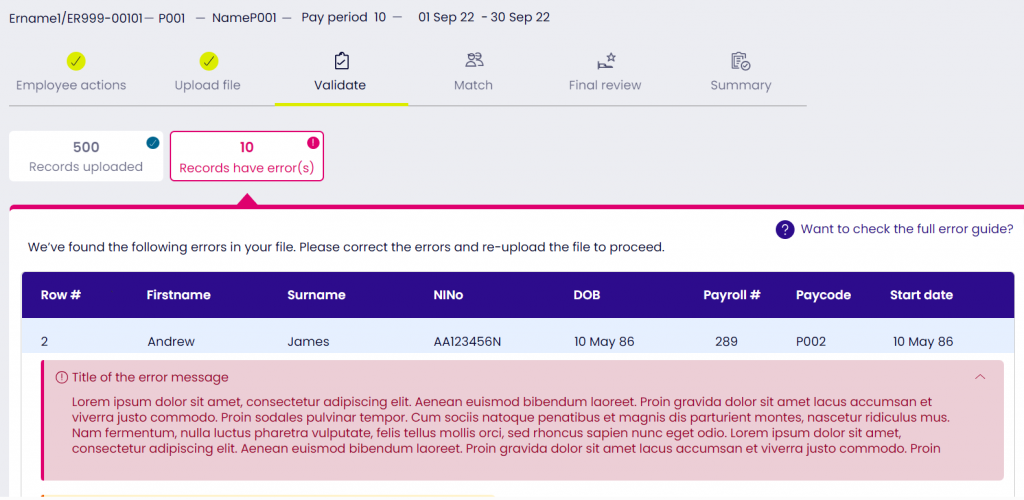
By choosing Download all errors, you can download an error log. This is a CSV file with information on all the errors in your current upload. To help you understand what the different values mean, look at Error log down load file spec ver 0.2.xlsx, which explains the columns in the error log.
Choose Cancel and upload a new file. This deletes the whole pension data file, including rows with no errors. Once you’ve fixed all the errors, you can upload a new pension data file. Remember to include all the rows with no errors as well as revised rows with errors fixed.
If you get more errors after uploading a new file, you’ll need to repeat the process. You won’t be able to carry on with your upload until the field-level check finds no errors in any of the rows in your pension data file.