What can you edit?
You can only correct a worker’s payments for pay periods that have been uploaded to now:u since it was launched. If you need to edit pay periods that were submitted to the previous system (Gateway) please ask for help using the webchat.
To edit a pay period that’s been uploaded to now:u, log in to now:u, go to Payrolls and then Pay periods to find the period that needs to be updated.
Editing a worker’s payments in the pay period
You can edit a worker’s payments if they’ve been imported for a pay period and their status is Payment received, Opt out period or Action required. You can’t edit payments with any other status.
If there are already payments for the worker in the pay period, you’ll be able to:
- change or delete that worker’s payments for the period
- give a leaving date for the worker.
If there are no payments for that worker in the pay period, you’ll only be able to:
- put in a payment amount for that worker in the period
- give a leaving date for the worker.
You can also increase and decrease payment amounts while you’re editing the pay period. Once you’ve made all your changes and submitted the payroll, the system will work out what extra money needs to be paid, or how much should be refunded, to the appropriate bank account.
How to edit a worker’s payment
There are two ways to edit a worker payment: manually using now:u or by uploading a correction file.
Only one way of editing can be used at a time, so if you have outstanding manual corrections to process, the correction file upload won’t be available.
The screenshot below shows how to edit payments on screen. The Edit pencil icon will be shown next to all rows that can be edited.
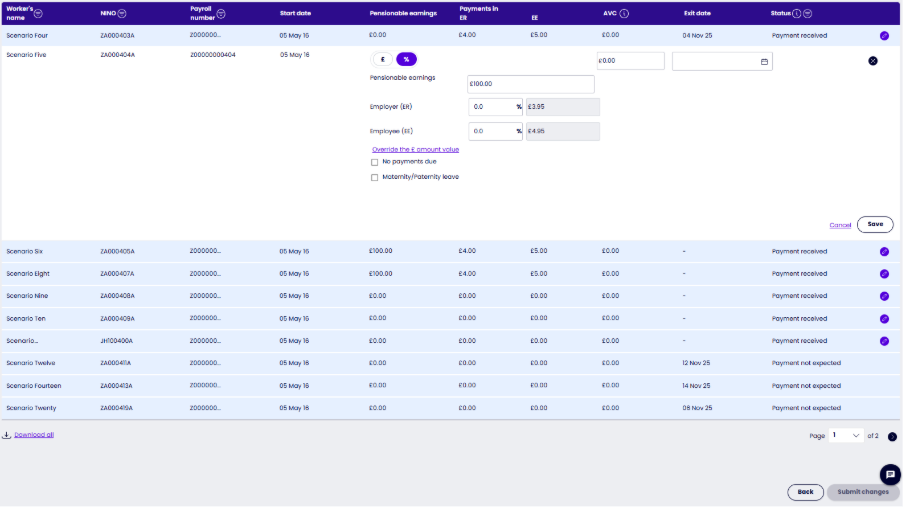
You must save each change you make. Once you’ve made all the changes you need to the pay period, choose Submit changes.
If you need to edit payments for several workers, you can also do this using a correction file upload.
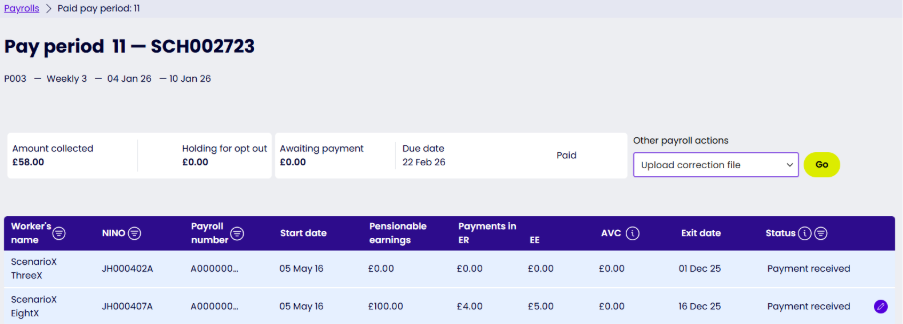
Choose Upload correction file from the Other payroll actions dropdown.
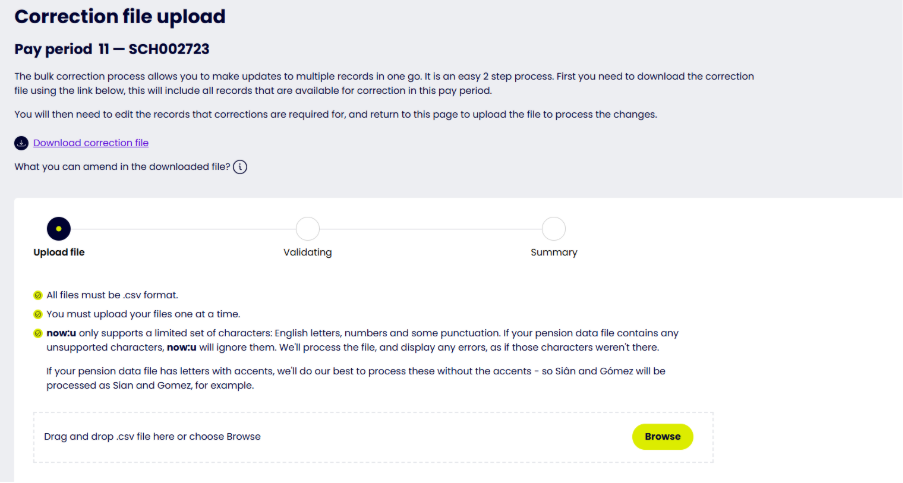
Download the correction file to produce a csv file containing all records available for editing.
Please do not add any extra records to the file – they’ll be rejected on upload.
Please do not change any values in columns A to G (Internal schedule reference to PAYROLLNO). These values are used to match the rows to the worker’s record.
For records you want to change, update the values in columns H to O and put a Y in the correction indicator column for that row.
If you need to confirm a non or partial payment reason, use these codes for the relevant row:
| Code | Reason |
| 1 | Parental Leave |
| 2 | No payment due |
Remove any records in the file that don’t need changes. Importing unchanged rows can delay processing.
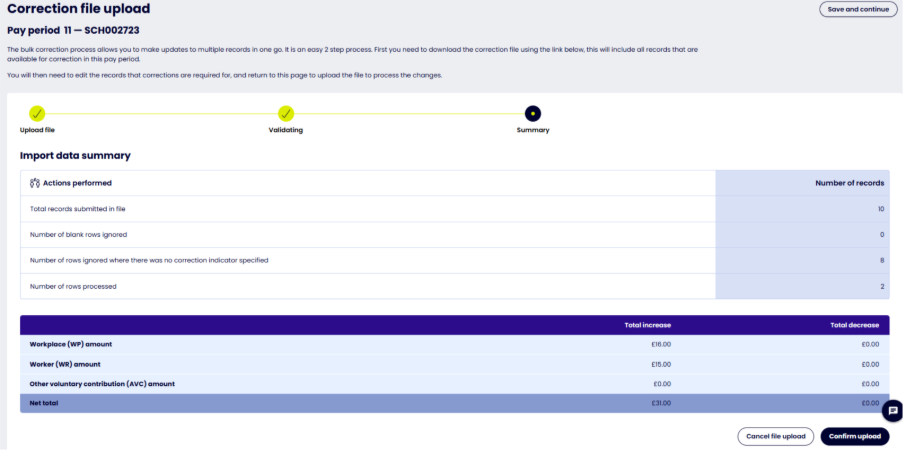
Once you’ve made all necessary edits, upload the file to process the changes.
You’ll see an import summary before you confirm the upload. Confirm the summary to process your changes.