
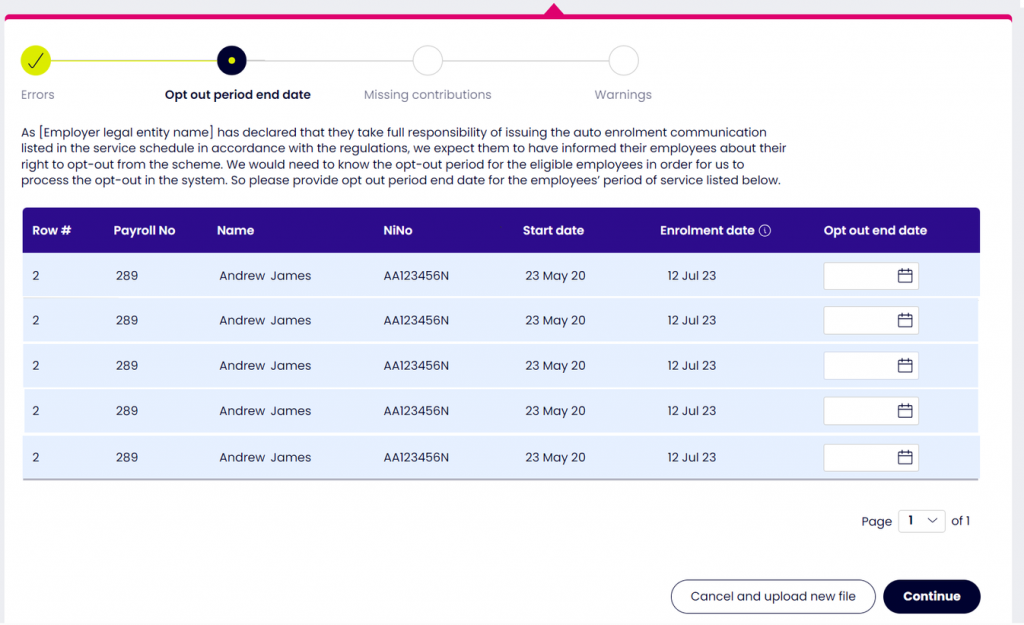
You must give each worker you enrol the end date of their one-month opt-out period. This date must be the same as the date on the enrolment notice you’ve sent them.
We need this date so we don’t process any payments in to their pension savings until after the end of their opt-out period. This is in case they opt out and you need to pay the money back to them.
Missing contributions
When you enrol a worker, the system will expect payments for all future pay periods unless the worker opts out, or until they:
- stop paying in to their now:pensions account
- stop working for you, or
- take their money out of now:pensions.
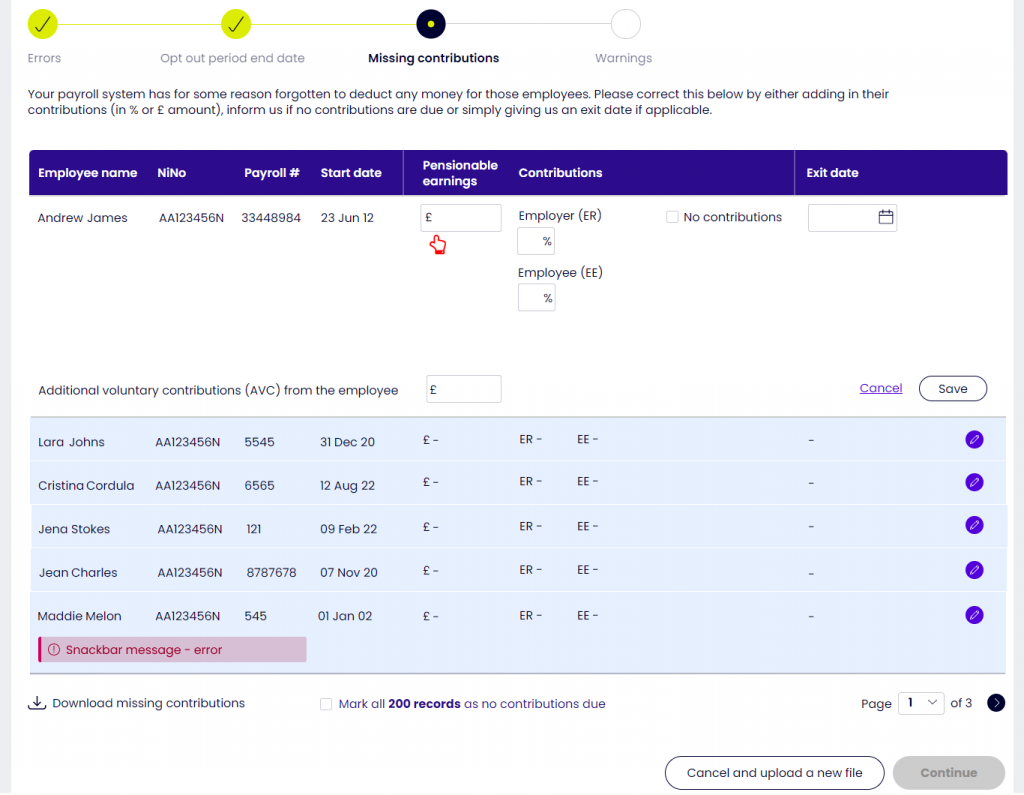
If there are any active workers who aren’t included in a pension data file, you’ll be prompted to do one of the following things for each missing record.
- Add the missing payments (in % or £ amount).
- Tell us no payments are due.
- Put in a leaving date, if this applies.
You also have the option to tell us that all the records have no contributions due for the pay period.
Warnings
If you get a warning, the row will show the key fields and a message describing the warning. Here’s an example.
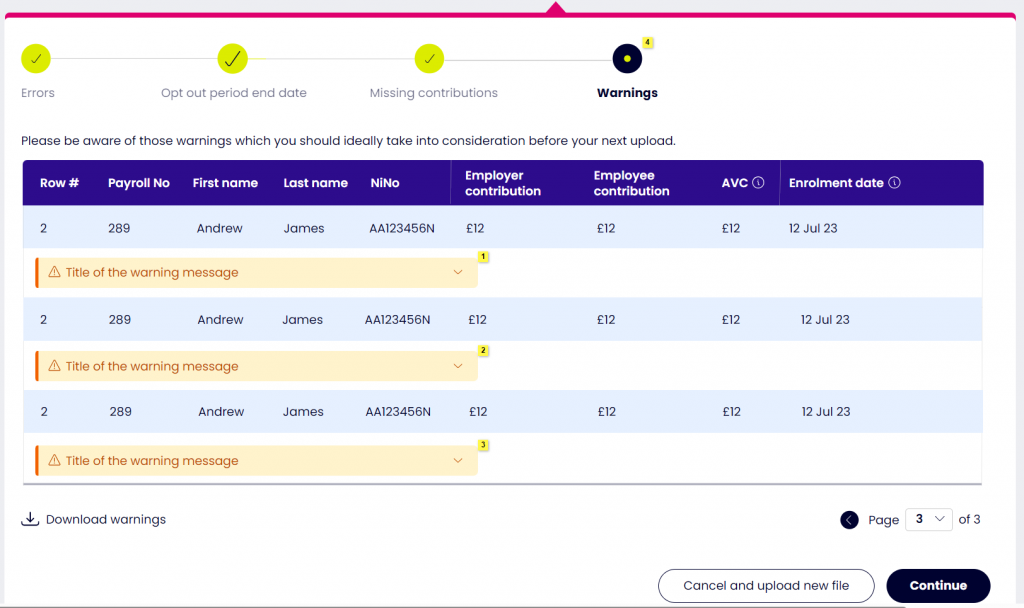
A warning won’t stop your pension data file being processed. But we suggest you update your payroll system with whatever the warning has flagged, so you don’t get the warning again in future.
You can download a warning log in the same way as an error log. To help you understand what the values mean, look at this file Error log download file spec ver 0.2.xlsx which explains the columns in the warning log.
Import summary
As the last step in uploading your file, you’ll see an import summary. This shows all the records you’ve included in the pension data file or updated in the post-matching section.
If you’ve asked now:pensions to send your statutory auto enrolment communications for you, your import summary will show the communications we’ll send once the file is processed.
You can download your import summary, if you want to.
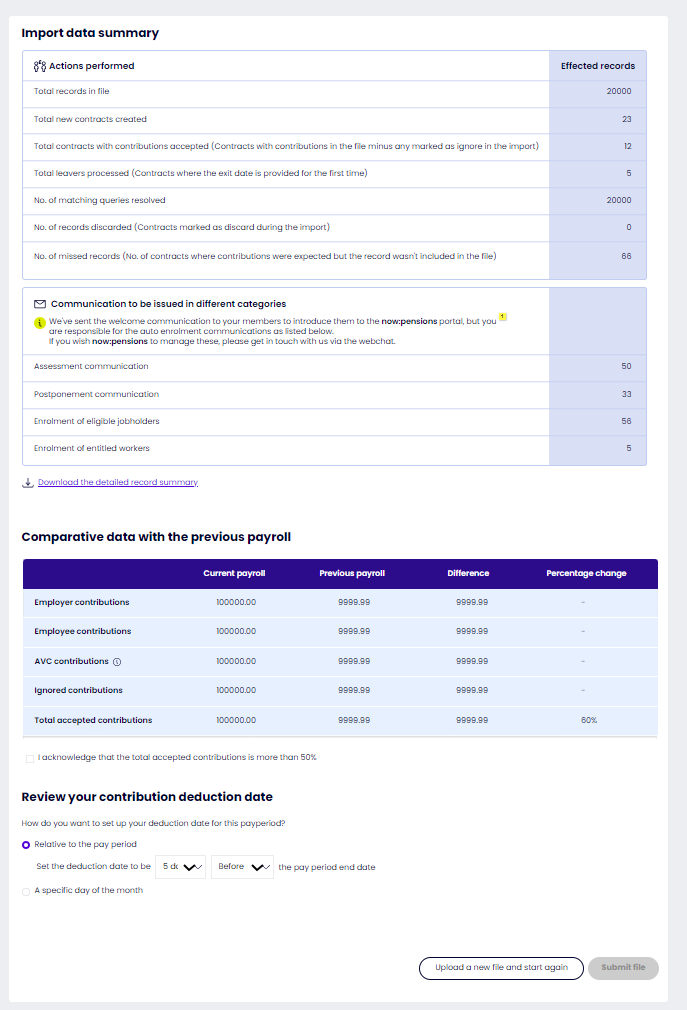
If more than half the payment details in your current file are different from the details you uploaded in the previous pay period, we’ll ask you to confirm that the details in the file are correct before you confirm the import.