
Once the member matching’s done – the records in the pension data file have been matched to the right workers and periods of service in the system – there are some additional checks to make sure the data that’s uploaded for those workers and periods of service is accurate.
Depending on what the checks find, you may see one or more of these screens.
Errors
If we find any errors, the row will show the key fields and a message describing the error. Here’s an example.
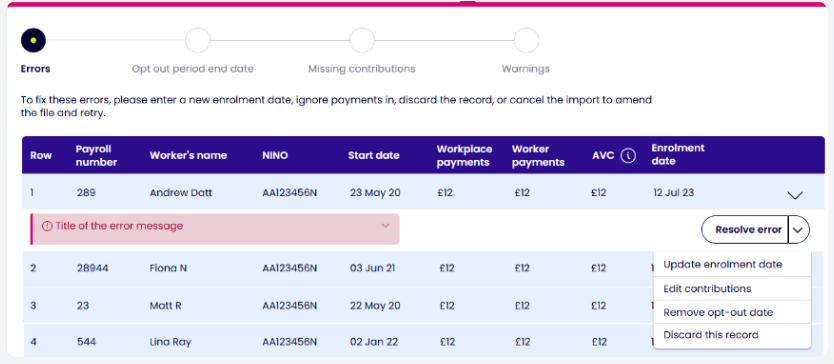
By choosing Download errors, you can download an error log. This is a CSV file with information on all the errors in your current upload. To help you understand what the different values mean, look at Error log down load file spec ver 0.2.xlsx, which explains the columns in the error log.
You’ll need to resolve each error separately. The error message will show what options are available for you to resolve each error. Here are all the potential options.
Add an enrolment date
We need an enrolment date to accept payments for a particular worker and period of service. If a pension data file includes payment details but we don’t have an enrolment date for the worker, please put the enrolment date in manually. Once the enrolment date has been added, we’ll be able to process the payments.
Edit contributions
If the contributions don’t meet the minimum requirements, you can provide revised figures to resolve the error. You can also confirm that no payments are due, or that the worker is on parental leave.
Remove opt-out date
Workers must opt out through now:u. If you’re providing a new enrolment date and opt out date in the same file, you can remove the opt out date so the worker enrolment is processed.
Discard this record
Choose Discard this record if you accidentally upload data for a worker whose details shouldn’t be included in the file – because, for example, they stopped working for you in a previous pay period. We won’t process any of the data for this worker.