Exception contributions can be processed at any time to upload lump sum bespoke contributions due to workers outside the existing payroll schedules, or missed from previous submissions.
They can only be used to process incremental payments. If you need to process a detriment for a previously submitted amount, please see nowpensions.com/support/employers/guides/how-do-you-correct-contributions-for-a-worker.
How to process an exception contribution
In now:u, choose Exception contributions from the left-hand side menu.
First, create a new exception contribution schedule to upload the payments to. Do this by filling in the fields below to explain why the contributions are being processed, and for what period.
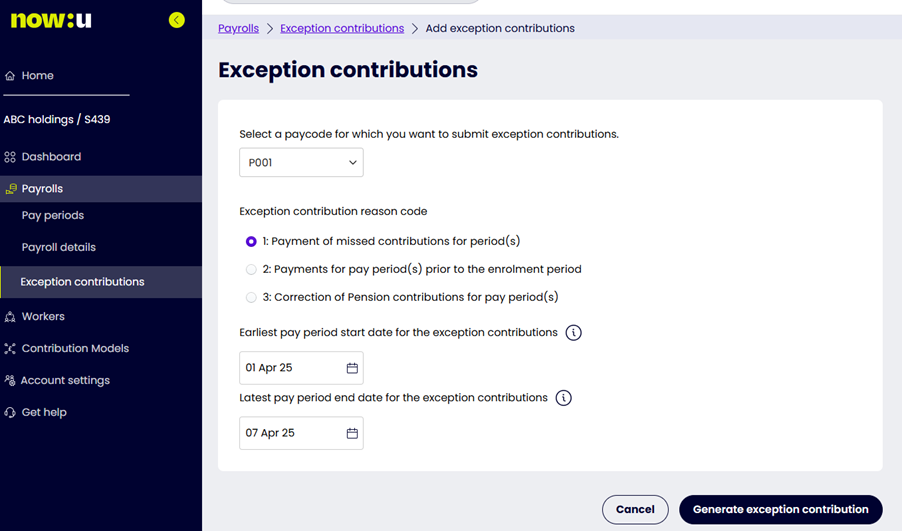
The payment method given to the paycode you enter will be used for the collection of the exception contributions.
Once you’ve put in the relevant details and chosen Generate exception contribution, a schedule entry like the one in the picture below will be created for the relevant upload.
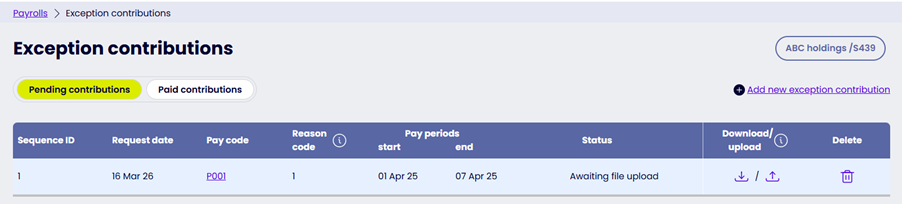
Choose the download option to produce a file that has the following headers.
| Header no | Header | Required? | Format | Explanation |
| 1 | Sequence ID | Yes | Numeric | Sequence ID assigned to the exception schedule on creation |
| 2 | Request Date | Yes | DD/MM/YYYY | Request Date assigned to the exception schedule on creation |
| 3 | Forename | Yes | Up to 40 characters | This must match the value held in nowu for the contract you want to process contributions for. |
| 4 | Surname | Yes | Up to 40 characters | This must match the value held in nowu for the contract you want to process contributions for. |
| 5 | NINO | No | AA000000A | This must match the value held in nowu for the contract you want to process contributions for. |
| 6 | DOB | Yes | DD/MM/YYYY | This must match the value held in nowu for the contract you want to process contributions for. |
| 7 | STARTDATE | Yes | DD/MM/YYYY | This must match the value held in nowu for the contract you want to process contributions for. |
| 8 | PAYROLLNO | Yes | Up to 25 characters | This must match the value held in nowu for the contract you want to process contributions for. |
| 9 | PENSIONABLE EARNINGS | No | 0.00, no £ symbol | The earnings used to work out the contributions for the exception period. If value is not known, please enter 0.00. |
| 10 | EE CONT % | No | 0.00, no % symbol | The workers contribution rate for the exception period. If value is not known, please enter 0.00. |
| 11 | ER CONT % | No | 0.00, no % symbol | The workplaces contribution rate for the exception period. If value is not known, please enter 0.00. |
| 12 | EE CONTS | No | 0.00, no £ symbol | The workers gross contribution for the exception period. |
| 13 | ER CONTS | No | 0.00, no £ symbol | The workplaces gross contribution for the exception period. |
| 14 | AVCS | No | 0.00, no £ symbol | The workers gross extra contributions for the exception period. |
| 15 | Partial payment reason code | No | Numeric | Can be 1 or blank 1 is used to confirm Parental leave |
Important! Headers 3 to 8 are used to identify the contract that contributions are being loaded against. The values you put in the file must match the value we hold for the contract in nowu, otherwise the record will give you an error when you upload it.
Once you’ve made all your edits, use the upload option on the exception schedule entry to import the file.
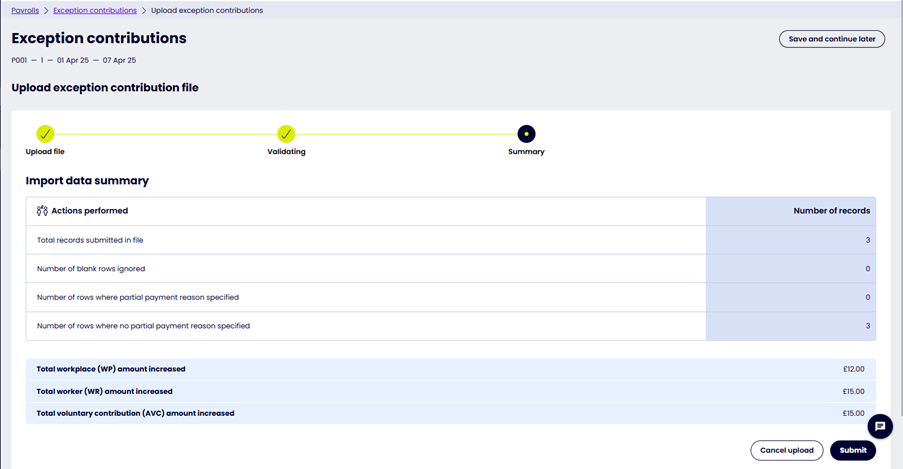
You’ll see an import summary, like the picture below, before you confirm the upload. Confirm the summary to process the contributions.